
Web push notifications work when the website is closed, but on desktop the browser itself must still be running. On Android, the system wakes the browser when a push arrives, even if Chrome is closed. On iPhone, Home Screen web apps behave like native apps. On Windows and macOS, a fully quit browser can’t receive anything until it opens again.
This is one of the most common questions I get about web push notifications when the browser is closed, and the honest answer is “it depends on the device”. Below I explain how it works on each platform, what happens to messages sent while the browser is off, and what that means for your campaigns.
Do web push notifications work when the browser is closed?
Yes on Android and iPhone, and only partly on desktop. The tab or website never needs to be open, because a service worker handles the push in the background. What changes by platform is whether the browser process has to be running.
| Platform | Site/tab closed | Browser fully closed | Who wakes the browser |
|---|---|---|---|
| Android (Chrome, Firefox, Edge) | Works | Works | The Android OS |
| iPhone/iPad (Home Screen web app, iOS 16.4+) | Works | Works | iOS, via Apple’s push service |
| Windows | Works | Only if the browser keeps running in the background | Nobody, if the browser has quit |
| macOS | Works | Only while the browser app is still running | Nobody, if the browser has quit |
Google’s web.dev push notifications FAQ explains the Android and desktop difference. On Android, the OS listens for push messages and wakes the browser. On desktop, a push is received only if the browser is running, even with no windows open.
Why doesn’t the website need to be open?
Because the service worker receives the push, not the web page. A service worker is a script the browser keeps registered for your site. When a push message arrives, the browser starts that script briefly, and it shows the notification.
That’s the whole point of the Push API: your server can reach a subscriber who left your site days ago. For the full flow, see my explainer on how push notifications work and my guide to the service worker for web push.
What happens on desktop when the browser is quit?
Nothing arrives while it’s quit. On macOS, an app can keep running with no windows open, which you can see in the Dock. In that state, notifications still arrive. However, once the user quits the browser completely, it can’t receive pushes until they open it again.
Windows is similar but less visible. Some browsers can keep running in the background after the last window closes, depending on their settings. If that background mode is off, closing the last window ends delivery until the next launch.
Are messages lost if the browser is closed?
Not always. Push services hold a message for as long as its time-to-live (TTL) allows. If the browser comes back online within that window, the message is delivered then. If not, it’s dropped.
The TTL is set by your server on each send, as defined in the Web Push protocol (RFC 8030). A TTL of zero means “deliver now or not at all”. A longer TTL means a desktop user who opens their laptop the next morning may still get yesterday’s message.
So, pick the TTL to match the content:
- Breaking news or flash sales: short TTL, so stale alerts don’t arrive hours late.
- Evergreen content or reminders: longer TTL, so more subscribers eventually see it.
- Time-bound events: set the TTL to end when the event ends.
How does this work on iPhone?
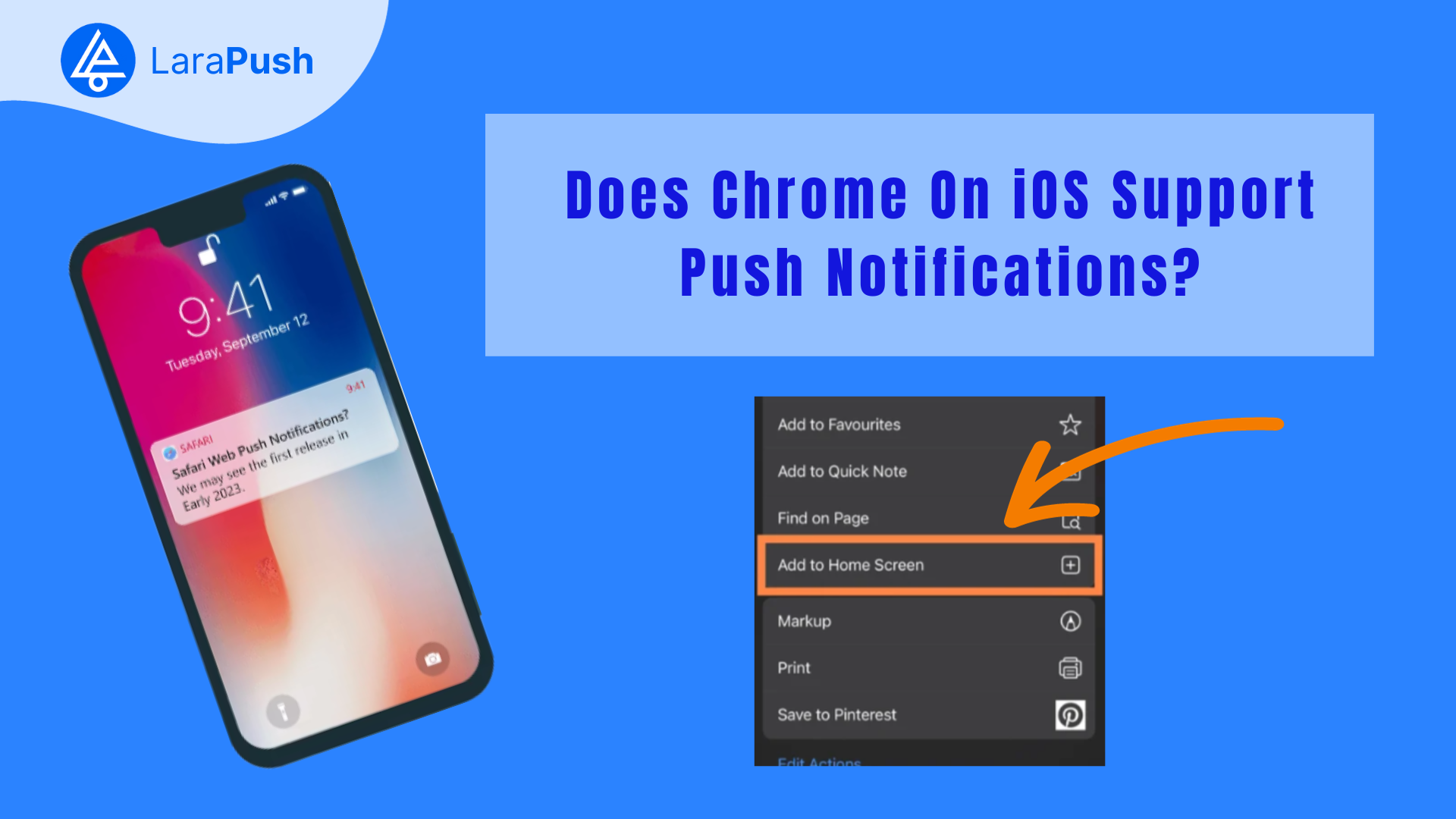
On iPhone and iPad, web push only works for sites added to the Home Screen on iOS 16.4 or later. Once installed, the web app’s notifications behave like other apps’ notifications. WebKit’s iOS 16.4 web push announcement says they show on the Lock Screen, in Notification Center and on a paired Apple Watch.
The web app doesn’t need to be open for delivery. That said, if the user deletes the Home Screen icon, the subscription ends. My guide on how to get web push working on iPhone covers the setup.
What does this mean for your campaigns?
It means desktop reach depends on timing more than mobile reach does. A desktop subscriber whose browser is quit at night won’t see a message until they open it, and maybe not at all if the TTL runs out first.
In practice, I’d do three things:
- Send desktop-heavy campaigns during your audience’s working hours.
- Match the TTL to how long the message stays useful.
- Compare delivered and clicked by device type in your reports, rather than judging one total.
If delivery looks low, check the basics in web push notifications not showing. Then segment by device so desktop and mobile get the timing that suits them. My post on push segmentation by location and device shows how.
Where does LaraPush fit?
LaraPush is a self-hosted web push panel that delivers through Firebase Cloud Messaging and supports Chrome, Firefox, Edge, Opera, Android browsers, and iPhone via iOS Safari web push (iOS 16.4+, Home Screen). Its analytics break down sent, delivered and clicked by device, OS and browser, and it supports scheduling and segmentation by device. See the features overview and audience segmentation.
The trade-offs: you run your own VPS, the licence covers one server, and there’s no free plan. Plans start from $499 one-time; check the pricing page for current prices. For alternatives, see my roundup of push notification services.
Frequently asked questions
Yes. On Android, the operating system listens for push messages and wakes the browser when one arrives, even if Chrome isn’t open. The browser then starts the site’s service worker, which shows the notification.
Not while it’s asleep. The push service holds the message for as long as its time-to-live allows. When the computer wakes and the browser reconnects, the message is delivered if it hasn’t expired. Otherwise it’s dropped.
No. The site’s service worker receives the push in the background, so subscribers get notifications without having your site open. On desktop, only the browser needs to be running, even with no windows open.
Yes, as long as the site was added to the Home Screen on iOS 16.4 or later and the user allowed notifications. Notifications from Home Screen web apps arrive like other app notifications, including on the Lock Screen.
Set it by how long the message stays useful. Use a short TTL for breaking news or flash sales, and a longer one for evergreen content. Without a suitable TTL, desktop users who were offline may get stale alerts or miss them.