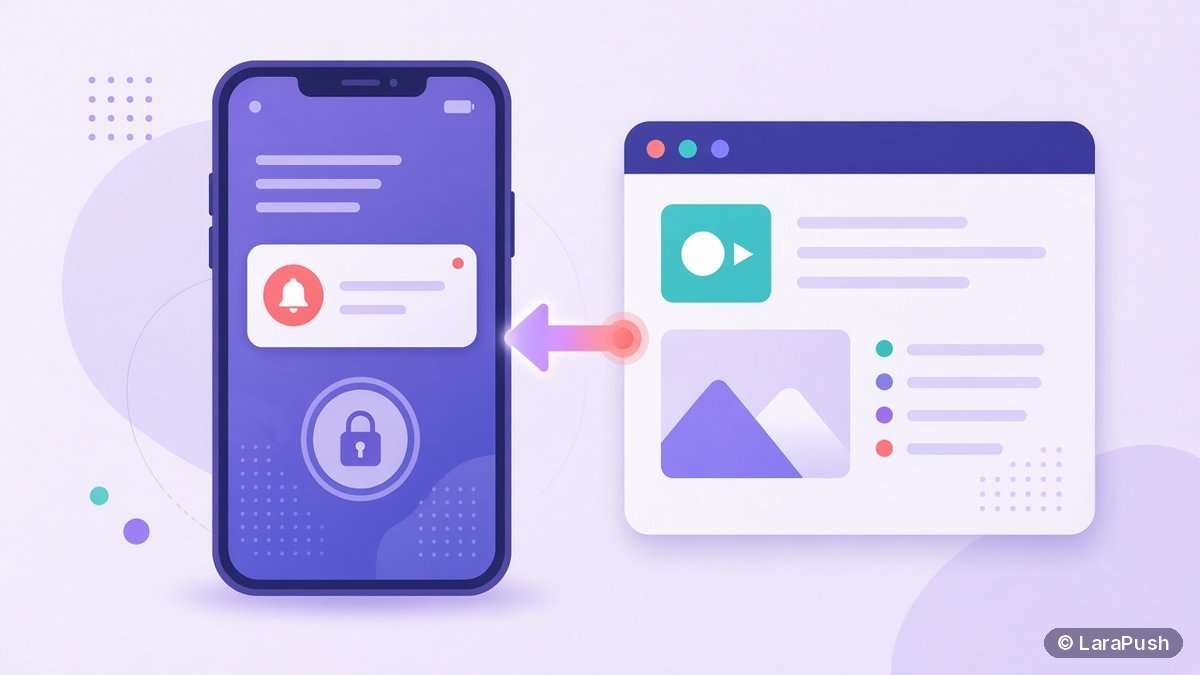

Yes. Since iOS 16.4, a website can send push notifications to an iPhone without an app, but only after the visitor adds it to the Home Screen. The site needs a web app manifest, a service worker and an opt-in button the user taps. Push from a normal Safari tab still doesn’t work on iPhone.
Whenever I review a push setup, “does it work on iPhone?” is the first question site owners ask. For years the answer was no. Since March 2023 it has been yes, with conditions. Here’s exactly how iPhone push notifications without an app work, what your site needs, and what your visitors have to do.
Key facts
- iPhone and iPad web push arrived in iOS and iPadOS 16.4 (WebKit, Feb 2023).
- It works only for Home Screen web apps, not for sites open in a Safari tab.
- The permission request must follow a direct user action, such as tapping a Subscribe button.
- Delivery uses the Apple Push Notification service (APNs). You don’t need an Apple Developer Program membership.
- iOS 18.4 added Declarative Web Push, which can show notifications without a service worker (WebKit, Mar 2025).
Can you send push notifications to iPhone without an app?
Yes, you can send iPhone push notifications without an app, as long as the user runs iOS 16.4 or later and has added your site to the Home Screen. Apple’s WebKit team describes it as the same standards-based Web Push that shipped in Safari 16.1 for macOS Ventura. It uses the Push API, the Notifications API and a service worker together.
That said, it isn’t the same as Android or desktop. On those platforms, a visitor can allow notifications straight from the browser tab. On iPhone, the site must first become a Home Screen web app. As a result, the opt-in journey is longer, and your iPhone subscriber list will usually grow more slowly than your desktop list.
What does your website need for iPhone web push?
Your website needs four things for iPhone web push: HTTPS, a web app manifest, a service worker and a subscribe button. Most push notification services handle the service worker and the subscription code for you. However, the manifest and the button are often your job.
| Requirement | Why it’s needed | Who usually handles it |
|---|---|---|
| HTTPS | The Push API and service workers only run in secure contexts | Your host |
| Web app manifest with `display` set to `standalone` or `fullscreen` | Turns a Home Screen bookmark into a Home Screen web app | You or your push tool |
| Service worker | Receives the push event and shows the notification | Your push tool |
| Subscribe button the user taps | iOS only allows the permission prompt after a direct user action | You or your push tool |
| Server-side sender with VAPID keys | Sends encrypted messages to Apple’s push endpoint | Your push tool |
According to WebKit, if a site has no manifest asking for web app behaviour, adding it to the Home Screen only saves a bookmark. In that case, the bookmark opens in the default browser, and push won’t be available. Also, if you control your own firewall rules, allow URLs from `*.push.apple.com`.
What does the visitor have to do on their iPhone?
The visitor has to install your site as a Home Screen web app and then opt in from inside it. Here’s the flow you should explain on your site, for example in a small banner shown only to iPhone users:
- Open your website in Safari (or another browser that offers Add to Home Screen).
- Tap the Share button.
- Tap Add to Home Screen, then tap Add.
- Open the site from the new Home Screen icon.
- Tap your Subscribe or Get notifications button.
- Tap Allow on the iOS permission prompt.
Since iOS 16.4, third-party browsers such as Chrome and Edge on iPhone can also offer Add to Home Screen from their Share menu. Once installed, the web app behaves the same way whichever browser added it. For background on Chrome specifically, see our older post on whether Chrome on iOS supports push notifications.
How do iPhone web push notifications look and behave?
iPhone web push notifications look and behave like notifications from native apps. According to WebKit, they appear on the Lock Screen, in Notification Center and on a paired Apple Watch. Users manage them per web app in Settings > Notifications, just like any installed app.
They also respect Focus modes. In addition, Home Screen web apps can use the Badging API to show a number on the app icon. In short, once a visitor has subscribed, the experience is very close to app push.
What are the limits of iPhone push notifications without an app?
The main limit is reach: only visitors who add your site to the Home Screen can subscribe. Here are the trade-offs I check before promising iPhone push to a client:
- No prompt in a Safari tab. You can’t ask a regular Safari visitor to allow notifications. You can only invite them to install the web app first.
- User gesture required. A prompt that fires on page load won’t work. It has to follow a tap.
- Older iOS versions miss out. Devices that can’t run iOS 16.4 or later can’t receive web push.
- Two-step education. You need clear on-page instructions, because many people have never used Add to Home Screen.
| Where the visitor is | Can they get web push? | Notes |
|---|---|---|
| Safari tab on iPhone | No | Must add the site to the Home Screen first |
| Home Screen web app, iOS 16.4+ | Yes | Opt-in after tapping a button |
| Native iOS app | Yes (app push) | Needs an App Store app and an Apple Developer Program membership |
| Safari on Mac (Safari 16.1+, macOS Ventura+) | Yes | No Home Screen step needed |
If you’re weighing web push against building an app, read web push vs app push, which compares cost and reach.
Do you need an Apple developer account for iPhone web push?
No, you don’t need an Apple Developer Program membership to send web push to iPhone. WebKit states this directly: web push on iOS uses the same Apple Push Notification service as native apps, but without the membership. By contrast, a native iOS app needs the program, which costs 99 USD a year according to Apple’s enrollment page.
So the cost of reaching iPhone users through web push is your push tool, plus the time to add a manifest and an install banner. For a deeper look at Apple’s fees for app push, see how much Apple charges for push notifications in iPhone apps.
What is Declarative Web Push on iOS 18.4?
Declarative Web Push is a newer form of web push that can display a notification without running service worker JavaScript. Apple shipped it for Home Screen web apps in iOS and iPadOS 18.4 and later brought it to Safari 18.5 on macOS. The push message carries a standard JSON description of the notification, so the system can show it directly.
For site owners, this matters less than it sounds. According to WebKit, it’s backwards compatible with existing Web Push. Your push tool can adopt it over time, and your Home Screen requirement stays the same.
How do you set up iPhone push notifications on your site?
You set up iPhone push notifications by choosing a push tool that supports iOS web push, adding a manifest, and showing iPhone users an install-then-subscribe banner. In practice:
- Pick a push notification service that lists iOS 16.4+ web push support. Our guide to choosing push notification software lists the questions to ask.
- Install its script and service worker, or its WordPress plugin.
- Add or check your web app manifest (`display: standalone`).
- Show iPhone visitors a short banner explaining Add to Home Screen.
- Inside the installed web app, show a Subscribe button that triggers the prompt.
- Test on a real iPhone running a current iOS version.
The general setup steps for every browser are in how to add push notifications to a website.
Where does LaraPush fit?
LaraPush is a self-hosted web push panel, and it supports iPhone and iPad through iOS Safari web push (iOS 16.4+, site added to the Home Screen). The details are on our iOS push page. It also covers Chrome, Firefox, Edge, Opera and Android browsers from the same panel.
The trade-offs are honest ones. You run it on your own VPS, a licence covers one server, and there’s no free plan. Pricing starts from $499 one-time; check LaraPush pricing for the current price. If you’re still comparing tools, our pillar on the best push notification services covers hosted and self-hosted options.
Frequently asked questions
Yes. Since iOS and iPadOS 16.4, a website can send push notifications to iPhone and iPad if the visitor adds it to the Home Screen as a web app and taps a button to allow notifications. Websites open in a normal Safari tab still can’t request push permission on iPhone.
On iPhone, web push only works for Home Screen web apps. Open the site, tap Share, choose Add to Home Screen, then open the site from its icon and tap its subscribe button. The site also needs a web app manifest, otherwise iOS saves it as a plain bookmark.
Web push on iPhone and iPad needs iOS or iPadOS 16.4 or later. Apple released support in March 2023. iOS 18.4 added Declarative Web Push, which can show notifications without a service worker, but the Home Screen requirement still applies.
Chrome on iPhone can add a site to the Home Screen since iOS 16.4, and the installed web app can then receive push notifications. Push permission isn’t available inside a normal Chrome tab on iPhone, just as it isn’t inside a normal Safari tab.
No. Web push to iPhone uses the Apple Push Notification service, but Apple says you don’t need to be a member of the Apple Developer Program. You only need that membership, which costs 99 USD a year, to publish a native app.