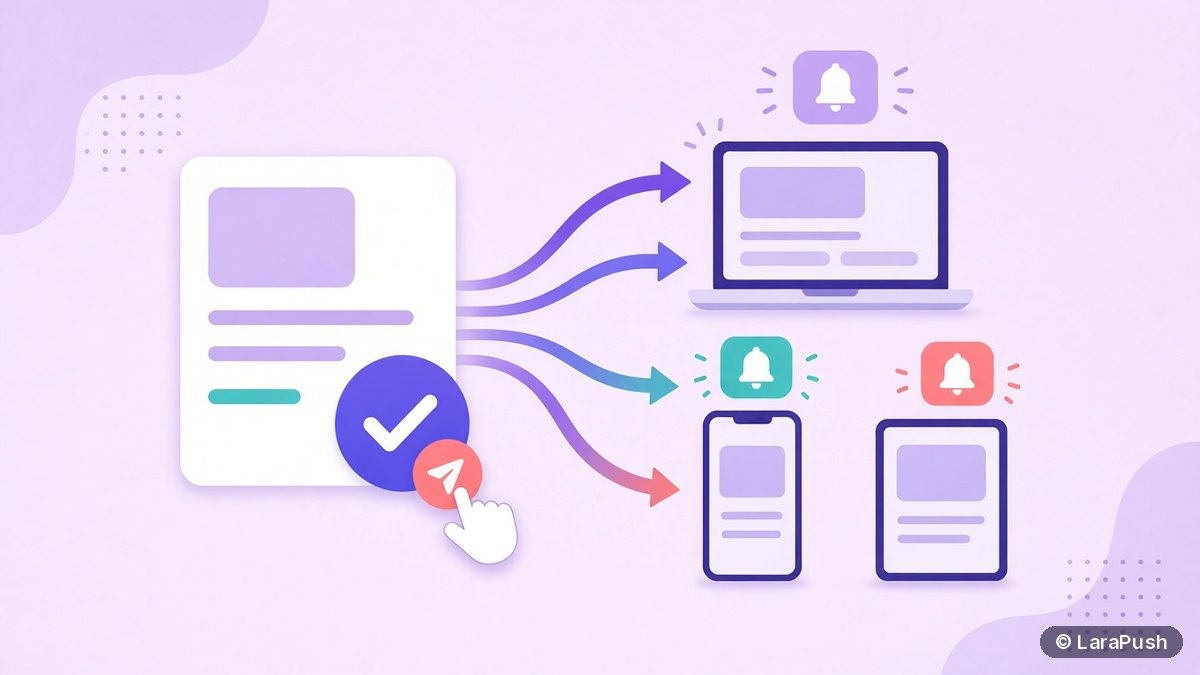

To send a push notification automatically when you publish a WordPress post, install a push plugin that supports push on publish, connect it to your push service, and switch on its automatic notification setting. The plugin then sends each new post’s title, excerpt and featured image to subscribers the moment the post goes live.
Push on publish is the feature I’d turn on first for any blog or news site. You write the post anyway, so the notification costs you nothing extra. That said, it has a few traps: duplicate sends when you edit, scheduled posts that go out late, and notifications for posts nobody needed alerting about. This guide covers the setup and those traps, based on the official WordPress developer docs and plugin pages checked on Oct 30, 2026. WordPress push on publish is the simplest way to keep subscribers informed.
What is push on publish in WordPress?
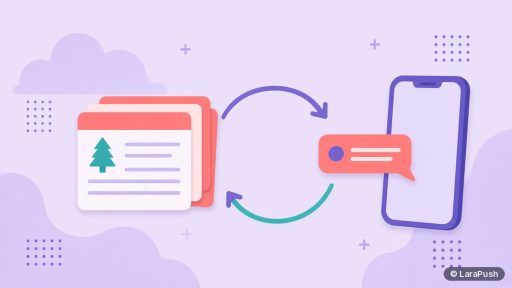
Push on publish is an automation that sends a web push notification when a post’s status changes to “published”. The plugin hooks into WordPress’s post status transitions, builds a notification from the post and sends it through your push service. No one has to open a dashboard.
Most push plugins support it, including OneSignal, Webpushr, PushEngage (which calls it RSS Auto-Push), Perfecty Push, Push Notifications for WP and LaraPush. For a comparison of those plugins, see my roundup of push notification services for websites.
How do you set up push on publish step by step?
The setup takes five steps once your push plugin is connected. If you haven’t added a plugin yet, start with adding push notifications to a website.
- Open your push plugin’s settings page in the WordPress dashboard.
- Turn on the automatic or push-on-publish option.
- Choose which post types and categories should trigger a notification.
- Set the notification template: title, message, image and link.
- Publish a test post and check that one notification arrives.
How do you turn on Push-on-Publish in LaraPush?
In LaraPush, you enable Push-on-Publish with a checkbox in the WordPress plugin settings. According to the LaraPush WordPress plugin page, the steps are:
- Install “Push Notifications by LaraPush” and connect it with your panel credentials and API key.
- Open the LaraPush plugin settings in WordPress.
- Check the “Push on Publish” option.
- Configure the notification template, plus content type filters and targeting rules.
The same page lists Push-on-Publish as a Pro plan feature, and its FAQ says you can limit automatic sends to specific categories or custom post types. LaraPush also has related automations: Welcome Push for new subscribers and AutoMagic Push (Pro), which sends random recent posts on a schedule (automation features).
What does the automatic notification contain?
Most plugins build the notification from the post itself. The common mapping looks like this:
| Notification part | Usually taken from | Tip |
|---|---|---|
| Title | Post title | Keep post titles under about 60 characters |
| Message | Excerpt or first lines | Write a custom excerpt that works as a teaser |
| Image | Featured image | Use a clear image without small text |
| Link | Post URL | Add UTM tags if your plugin supports them |
| Icon | Site icon set in the push dashboard | Square PNG |
For example, PushEngage’s FAQ says its auto-push uses the post title as the headline, the excerpt as the body and the featured image as the visual (PushEngage plugin). So a good excerpt and featured image directly improve the notification.
How do you avoid duplicate notifications when you edit a post?
Duplicates happen because WordPress fires its “published” hook again each time you update a post that’s already live. The post status transition docs explain that the old and new status can both be “publish” on an update. A well-built plugin checks that the previous status wasn’t “publish” before it sends.
To stay safe:
- Check your plugin’s settings for a “send on update” option and keep it off unless you need it.
- Edit typos once, not in five quick saves, until you know how your plugin behaves.
- Test once: publish a draft, then update it, and count the notifications you receive.
Some plugins send on update by design. For instance, Push Notifications for WP’s FAQ says it sends when you publish or update a post if automatic notifications are on (plugin page).
Do scheduled posts send push notifications on time?
Scheduled posts send when WordPress actually publishes them, and that depends on WP-Cron. WP-Cron runs when someone visits the site, not on a true clock (WordPress cron docs). On a quiet site, a post scheduled for 9:00 may go live a little later, and the notification follows it.
If timing matters, ask your host about a real server cron job that calls wp-cron.php on a fixed interval. That’s a hosting setting, not a plugin, and it keeps scheduled posts and their notifications on time.
Should every new post trigger a notification?
No. Send a notification for posts your subscribers actually want, and filter out the rest. Frequent low-value alerts teach people to ignore you or unsubscribe.
| Site type | Good trigger rule |
|---|---|
| News site | All breaking-news and top-story categories |
| Blog with weekly posts | Every new post |
| Blog with many short posts | Only selected categories |
| Store with a blog | Blog guides and new product posts, not every small update |
| Multi-author site | Only posts that pass editor review |
Category and post type filters are the simplest way to apply these rules. Segments go further by sending each category to the subscribers who care about it.
Where does LaraPush fit?
LaraPush fits publishers who want push on publish with no per-subscriber bill. It’s self-hosted, starts from $499 one-time (see current pricing), and includes unlimited subscribers and domains on one licensed server. Push-on-Publish is listed under the Pro plan. The trade-offs: there’s no free plan, and you maintain the VPS it runs on. See why self-hosted push suits some sites.
Frequently asked questions
Install a push notification plugin, connect it to your push service, and turn on its automatic or push-on-publish setting. Then choose which post types and categories should trigger a send and publish a test post to confirm exactly one notification arrives.
Usually because the post was updated after publishing and the plugin also sends on updates. WordPress fires its publish hook on every update to a live post. Turn off any “send on update” option, or check your plugin’s documentation for how it detects first publication.
Yes, many plugins support it. PushEngage lets you scope auto-push to post types, categories or tags, and LaraPush’s plugin page says you can limit automatic sends to specific categories or custom post types.
The feature is included on many free tiers, such as Webpushr’s free plan up to 10,000 active subscribers. With LaraPush, Push-on-Publish is listed as a Pro plan feature, which is a one-time purchase rather than a subscription.
Yes, the notification goes out when WordPress publishes the scheduled post. Because WP-Cron runs on site visits, a quiet site can publish a little late. A real server cron job set up by your host keeps the timing accurate.