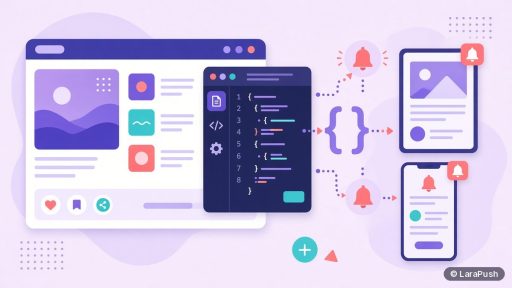
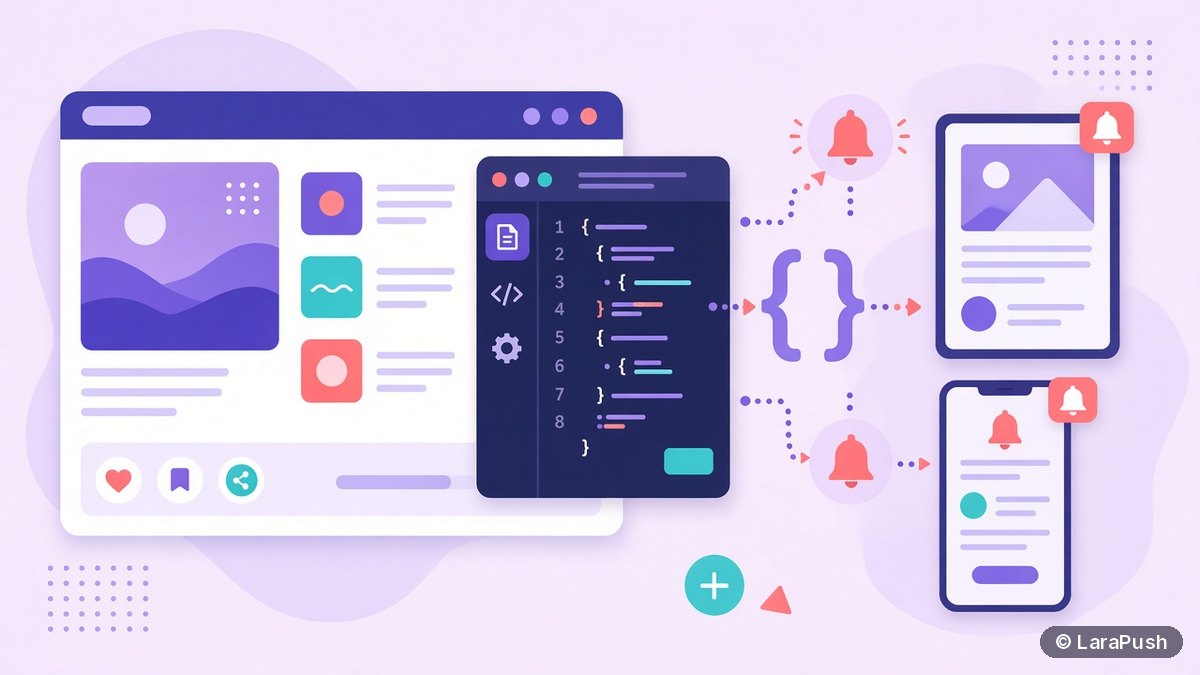

To add push notifications to a Blogger site, choose a push service that supports Blogger, copy its integration script, then open Blogger, go to Theme, click Edit HTML and paste the script into your theme. Save, visit your blog to confirm the opt-in prompt appears, and send a test notification. Blogspot addresses already use HTTPS, which web push requires.
Blogger is one of the trickier platforms for web push. You can edit your theme’s HTML, but you can’t install plugins the way you would on WordPress. So the push service you pick has to support Blogger specifically. In this guide I walk through the setup in Blogger, what to check before you choose a tool, and the limits to expect. The Blogger steps come from Blogger Help, checked on November 3, 2026.
Can you add push notifications to a Blogger site?
Yes, you can add web push notifications to a Blogger (Blogspot) site by pasting a push provider’s script into your theme HTML. Readers who allow notifications become subscribers, and you can then send them alerts for new posts, even after they’ve left your blog.
The catch is file access. Standard web push needs a service worker file served from your own site, and the service worker docs on MDN ties its scope to where that file lives. Blogger’s help pages describe editing your theme’s HTML and CSS, not uploading files to your blog’s root folder. So check that your provider has a dedicated Blogger integration, rather than assuming its regular website setup will work.
What do you need before you start?
You need four things before adding push to Blogger:
- Admin access to the blog so you can open Theme and Edit HTML.
- HTTPS. Blogspot addresses are always served over HTTPS. For a custom domain, turn on HTTPS in Settings (Blogger Help).
- A push service with Blogger support and its integration code.
- A backup of your theme. Download it before editing, so you can restore it if something breaks.
That’s it. You don’t need hosting, a server or coding skills for the Blogger side.
How do you add Blogger push notifications step by step?
The setup takes about six steps in most push tools. Here’s the flow I’d follow:
- Create an account or project in your push service and add your blog’s address.
- Choose the Blogger integration type, then set up your opt-in prompt (heading, text, icon and button labels).
- Copy the integration script the service gives you.
- In Blogger, open your blog, click Theme in the left menu, then under “My theme” click the menu and choose Edit HTML.
- Paste the script where your service says (often just before the closing body or html tag), then click Save.
- Visit your blog in a new browser window, confirm the prompt appears, allow notifications and send yourself a test.
If the prompt doesn’t show up, clear your browser cache and check that you saved the theme. Also make sure you’re visiting the https:// version of the blog.
How LaraPush’s Blogger setup works
LaraPush has a dedicated Blogger integration, documented in its Blogger guide. It has three steps:
- In the LaraPush panel, open Blogger Code Integration and set the popup heading, subheading, logo URL and the Allow and Deny button text.
- Copy the script from the panel and paste it just before the closing html tag in your Blogger theme.
- Visit your blog, check the popup is visible, then tick “I confirm that popup is visible in my website” in the panel.
Unlike LaraPush’s regular website setup, which asks you to upload two files to your site’s public folder, the Blogger guide only asks you to paste a script.
What can you send to Blogger subscribers?
You can send Blogger subscribers the same notifications as any other website’s subscribers. The most useful sends for a blog are:
| Notification | When to send | Tip |
|---|---|---|
| New post alert | When a post goes live | Lead with the reader’s problem, not the post title |
| Evergreen resend | On quiet days | Pick posts that are still accurate |
| Series update | When a new part is out | Link to the series hub page |
| Event or launch | Before a date-based post | Schedule it in advance |
Because Blogger has no plugin system, new-post alerts are usually sent from your push dashboard rather than automatically on publish. Tools that support RSS-to-push can automate them, so check for that feature if you post often. For ideas on resending older posts, see how to recirculate evergreen posts with push.
What are the limits of Blogger push notifications?
Push on Blogger has three limits worth knowing before you start:
- Provider support. Only push services with a Blogger integration will work smoothly, because you can’t upload a service worker file the usual way.
- iPhone readers. Web push on iOS and iPadOS 16.4+ only works after the reader adds your site to the Home Screen (WebKit), so most subscribers will come from Android and desktop.
- Switching later. Web push subscriptions are tied to the service worker and keys used when the reader subscribed. So ask any provider how you’d move your list if you change tools. I explain why in what happens to your subscribers when a push provider shuts down.
Also, keep the prompt polite. A delayed prompt that explains the benefit (“Get new posts as soon as they’re published”) is less annoying than a pop-up on the first second of the first visit. My web push best practices for bloggers and publishers go into timing and frequency.
Which push tools work with Blogger?
Several push services list Blogger support, but check each one’s current documentation before you commit. When I compare them for a Blogger site, I check three things:
- A documented Blogger integration, not just “works on any website”.
- The subscriber limit on the free plan, and what happens when you pass it.
- Whether you can export subscribers.
For a wider shortlist by blog size, see my list of the best push notification tools for bloggers.
Where does LaraPush fit for Blogger sites?
LaraPush fits large Blogger sites that want unlimited subscribers for a one-time payment. Blogger support is included from the Startup plan, which starts from $499 one-time (check current LaraPush pricing). You can customise the prompt, segment subscribers and schedule campaigns from the panel. The trade-offs: there’s no free plan, and you host the LaraPush panel on your own VPS, even though the blog itself stays on Blogger. For a small blog that’s just starting, a free tool may be enough for now.
Frequently asked questions
Some push services have free plans, so you can start without paying, usually up to a subscriber limit. Check that the service has a documented Blogger integration and lets you export subscribers. Paid tools and one-time licences such as LaraPush suit larger blogs.
Go to Theme in the Blogger menu, open Edit HTML under My theme, and paste the script where your push service tells you, often just before the closing body or html tag. LaraPush’s Blogger guide says to paste it just before the closing html tag.
Yes, web push only works on HTTPS. Blogspot addresses are always served over HTTPS. If you use a custom domain, turn on HTTPS availability and HTTPS redirect in Blogger’s Settings.
Blogger has no plugins, so it can’t trigger a push on publish by itself. Some push services can send new posts automatically from your RSS feed. Otherwise, you send the alert from your push dashboard after publishing.
Only on iOS 16.4 or later, after the reader adds your blog to the Home Screen and allows notifications there. Android phones and desktop browsers such as Chrome, Edge and Firefox don’t need that step.