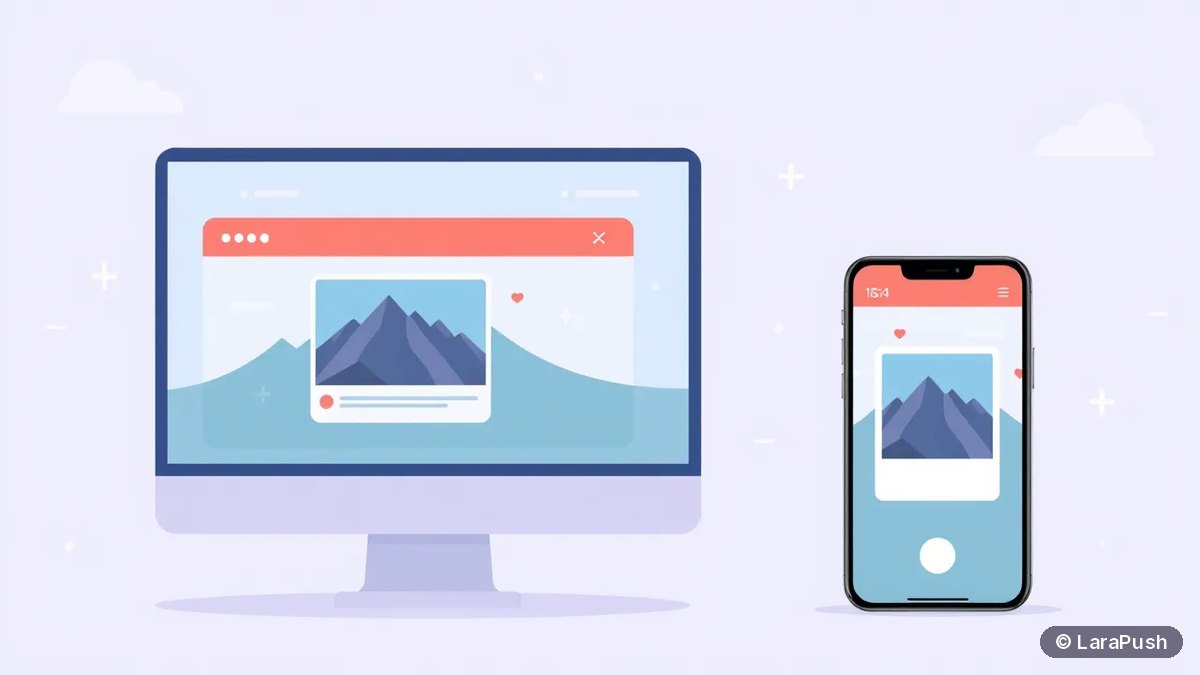

To add an image to a web push notification, set the image option to an HTTPS image URL when the service worker calls showNotification, or fill the image field in your push tool. Chrome, Edge and Opera show it as a large picture on Windows and Android. Firefox and Safari ignore it, so the text must work on its own.
A web push notification image is the large picture under the text, separate from the small icon. It makes a notification easier to notice in a crowded tray. However, support is uneven, so I treat it as an extra, never as the message itself. Below I cover where images show, the right sizes, the code and the common reasons an image doesn’t appear.
What image options does a web push notification have?
A notification can carry three kinds of image: the large image, the icon and the badge. Each has a different job and different browser support.
| Option | What it shows | Where it shows (Nov 2026) | Suggested size |
|---|---|---|---|
| image | Large picture below the text | Chrome, Edge, Opera (desktop and Android) | 1350 px wide or more; 4:3 or 2:1 |
| icon | Small square picture next to the title | Most browsers | 192 x 192 px or more |
| badge | Small monochrome symbol in the status bar | Chrome on Android | 72 x 72 px or more |
| actions[].icon | Small picture on each button | Chrome and Edge, where buttons show | Small square, e.g. 128 x 128 px |
The support data comes from MDN’s showNotification() compatibility table, which lists the image option as supported in Chrome since version 56 and not supported in Firefox or Safari. For buttons, see my guide to push notification CTA buttons.
Which browsers show a large web push image?
Chromium browsers show it: Chrome, Microsoft Edge and Opera. Firefox doesn’t support the image option on any platform, and Safari doesn’t either, including web push on iPhone and iPad from iOS 16.4.
Even within Chromium, the operating system has the final say. On Android, the image usually appears when the notification is expanded. On macOS, Chrome hands notifications to the system notification centre, which doesn’t show the large image the way Windows does. So a big share of your subscribers will never see it, and that’s why the text has to stand on its own. My list of browsers that support web push covers the wider support picture.
What size should a web push notification image be?
Use a light, compressed landscape image at least 1350 pixels wide, with the important part in the centre. That guidance comes from the Chrome team’s article on displaying a notification, which says Android’s only guideline is a 450dp width, so 1350 px covers a device pixel ratio of 3.
The same article notes that desktop Chrome uses a 4:3 ratio while Android crops differently, so there’s no single perfect shape. In practice, I use these rules:
- Ratio: 2:1 or 4:3 landscape, such as 1350 x 675 or 1440 x 1080.
- Safe area: keep faces, products and key details in the middle; edges get cropped.
- No text in the image: small text becomes unreadable, and the notification already has a title.
- Format: JPG or PNG; WebP works in current Chromium browsers.
- Weight: compress it. The browser downloads it when the notification arrives, often on mobile data.
How do you add an image in code?
Pass the image URL in your push payload, then set the image option in the service worker’s showNotification call. The browser fetches the image itself, so the payload only carries the URL.
// sw.js
self.addEventListener('push', (event) => {
  const data = event.data ? event.data.json() : {};
  event.waitUntil(
    self.registration.showNotification(data.title, {
      body: data.body,
      icon: data.icon || '/icon-192.png',   // small square icon
      image: data.image,                    // large picture, HTTPS URL
      badge: '/badge-72.png',               // monochrome, Android status bar
      data: { url: data.url }
    })
  );
});
On the server, add the field to the JSON you already send, for example {“title”: “…”, “body”: “…”, “image”: “https://example.com/push/sale-1350×675.jpg”, “url”: “…”}. Don’t embed the image as base64 in the payload. Push services only have to accept 4,096 bytes per message under RFC 8030, so a URL is the only practical option. The rest of the setup is in my guide to the service worker for web push.
How do you add an image in a push panel?
In most push panels, you paste an image URL or upload a file in the campaign editor, and the panel adds it to the payload for you. A live preview then shows roughly how it will look.
Here’s the usual flow:
- Create a new campaign and write the title and message first.
- Add the large image by URL or upload, using a 1350 px wide landscape file.
- Set the icon, often your logo, if the panel doesn’t use a default.
- Check the preview, then send a test to your own Chrome and Firefox browsers.
- Send or schedule the campaign once both versions read well.
Why is my web push notification image not showing?
Usually because the subscriber’s browser or operating system doesn’t support it, not because of your code. Check these causes in order:
| Cause | How to check | Fix |
|---|---|---|
| Firefox or Safari subscriber | Test in Chrome on Windows or Android | Nothing to fix; write for text-only |
| macOS system notifications | Test on Windows or Android | Expected; text must carry the message |
| Image URL not HTTPS or blocked | Open the URL in a private window | Use a public HTTPS URL; check hotlink protection |
| Image too slow or too large | Check file size | Compress; serve from a fast CDN |
| Image not in the payload | Log event.data in the service worker | Add the image field on the server |
| Android notification collapsed | Expand the notification | Expected on some devices |
If notifications don’t appear at all, the problem is elsewhere. My guide to web push notifications not showing covers that.
Do images make people click more?
They can, but I wouldn’t trust a single universal number. Results depend on your audience, the browser mix and the picture itself. Since many subscribers never see the image, the honest way to find out is to test it on your own list: send the same message with and without an image to two random halves, then compare click-through rate. My guide to push notification A/B testing explains how to set that up.
Where does LaraPush fit?
LaraPush supports images in its campaign editor. Manual campaigns let you set a custom title, message, image, link and icon, with a live preview and a test send before the campaign goes out. Quick Push fetches the title, description and image from a page URL you paste. See the features overview and the setup guide.
LaraPush is self-hosted, so you run your own VPS, the licence covers one server, and there’s no free plan. Plans start from $499 one-time; check the pricing page for current prices. For more ideas on what to send, see my web push notification examples.
Frequently asked questions
Use a landscape image at least 1350 pixels wide, in a 2:1 or 4:3 ratio, such as 1350 x 675. Keep the main subject in the centre, avoid text inside the image, and compress the file so it loads fast on mobile data.
No. Safari doesn’t support the image option, including web push for Home Screen web apps on iOS 16.4 and later. iPhone subscribers see the title, body and icon, so the text must carry the message without the picture.
No. Firefox doesn’t support the image option of showNotification on desktop or Android. It still shows the title, body and icon, so write every notification to make sense without the large picture.
The icon is a small square picture next to the title, often your logo, and most browsers show it. The image is a large picture below the text, shown mainly by Chromium browsers. Use both, with the icon at 192 x 192 pixels or more.
Not in practice. Push services only have to accept payloads of 4,096 bytes, which is too small for most images. Send an HTTPS image URL in the payload instead, and let the browser download the picture when the notification arrives.