
Yes, push notifications work on AMP pages through the official amp-web-push component. You add a subscribe button built with AMP markup, then upload two helper HTML files and a compatible service worker to your own HTTPS domain. When a reader taps the button, a small permission window opens on your domain, and the browser subscribes them in the background.
AMP pages don’t allow arbitrary custom JavaScript, which is why the usual “paste a script and you’re done” push setup doesn’t work on them. So AMP has its own component for web push. In this post I explain how AMP push notifications work, what you need to set up, and what to check with your push provider. The technical details come from the amp-web-push documentation on amp.dev, checked on November 3, 2026.
Do push notifications work on AMP pages?
Push notifications work on AMP pages, but only through the amp-web-push component, not through a provider’s normal JavaScript snippet. The component shows subscribe and unsubscribe widgets, opens a permission prompt, and tells a service worker on your site to subscribe or unsubscribe the reader.
Once a reader subscribes from an AMP page, they’re a normal web push subscriber. The notifications you send later arrive through the browser’s Push API like any other, whether the reader subscribed on your AMP or non-AMP pages.
How does amp-web-push work?
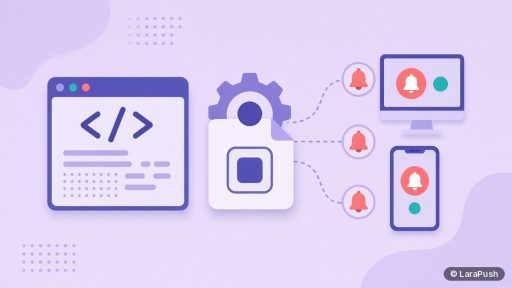
The amp-web-push component works by splitting the job between the AMP page and three files on your own domain. Here’s what each part does:
| Part | Where it lives | What it does |
|---|---|---|
| amp-web-push element | Your AMP page | Holds the configuration (the three file URLs) |
| amp-web-push-widget | Your AMP page | Shows a subscribe, unsubscribe or blocked state |
| helper-iframe.html | Your domain | Talks to the service worker and checks permission status |
| permission-dialog.html | Your domain | Opens as a pop-up and asks for notification permission |
| Service worker (.js) | Your domain, ideally the root | Subscribes and unsubscribes the reader in the background |
The AMP documentation says all three properties are required and all URLs must begin with the same origin, such as https://example.com. Widgets stay hidden until the component works out the reader’s subscription state, then the right one appears.
What do you need to add push notifications to AMP pages?
You need an HTTPS site, access to upload files to it, and a push service that supports amp-web-push. In practice, that means:
- HTTPS on your domain. Every amp-web-push URL must start with https://.
- File access. You must upload helper-iframe.html, permission-dialog.html and the service worker to your site.
- A compatible service worker. The worker must understand amp-web-push messages. Push providers that support AMP give you one.
- A push service or panel that stores subscribers and sends notifications.
- The component script in your AMP page head, loaded from cdn.ampproject.org.
If your provider’s service worker isn’t built for amp-web-push, AMP subscriptions won’t work, even if the rest of your site collects subscribers fine.
How do you set up AMP push notifications step by step?
Setting up AMP push follows the same five steps on most platforms:
- Get the AMP files from your push provider: the helper iframe page, the permission dialog page and an amp-web-push compatible service worker.
- Upload all three to your domain, with the service worker at the root (for example, example.com/service-worker.js).
- Add the amp-web-push script tag to the head of your AMP template.
- Add the amp-web-push element with the helper-iframe-url, permission-dialog-url and service-worker-url attributes.
- Add subscribe and unsubscribe widgets with amp-web-push-widget, then test on a phone and a desktop browser.
On WordPress, the AMP template usually comes from your AMP plugin or theme, so check where it lets you add components. After that, send a test notification to yourself before showing the widget to readers.
Why does the service worker location matter on AMP?
The service worker location matters because it limits which pages the worker controls. The AMP docs say amp-web-push only works at the same folder level as the service worker (and in subfolders) unless the worker is served with the HTTP header Service-Worker-Allowed: /.
So if you upload the worker to example.com/push/sw.js, it won’t cover pages at example.com/news/. The simple fix is to put it at the root. This matches the general rule on MDN: a service worker’s default scope is the directory it sits in.
Also, ask your provider whether its AMP service worker is the same file your regular pages use. If it is, readers who subscribe on either version end up in the same list.
Is AMP push different from push on regular pages?
AMP push differs mainly in how the reader subscribes, not in how notifications are delivered. Here’s how the two compare:
| Point | Regular pages | AMP pages |
|---|---|---|
| Opt-in method | Provider’s JavaScript prompt | amp-web-push widget plus pop-up dialog |
| Custom prompts | Many styles (modal, bell, full screen) | Widgets built from AMP elements |
| Files on your domain | Usually a service worker | Service worker plus two HTML helper pages |
| Delivery | Push API via the browser | Same |
| iPhone and iPad | iOS 16.4+ after adding to the Home Screen | Same rule applies |
The iPhone rule is worth repeating. Web push on iOS and iPadOS only works for web apps added to the Home Screen, per WebKit, so most AMP subscribers will come from Android and desktop browsers. For more, see my guide to iPhone push notifications without an app.
Does AMP push help with Google Discover?
AMP push doesn’t help Google Discover directly. Discover picks content on its own, and push is a separate channel you control. That said, if you keep AMP pages for any reason, adding push to them means readers who land on AMP versions still get a chance to subscribe. I cover how the two channels work together in Google Discover and web push.
Where does LaraPush fit for AMP sites?
LaraPush lists AMP as one of its integration types, alongside WordPress, regular websites, iOS and Blogger, and AMP support is included from the Startup plan. In the panel, you choose AMP under Domains, then Integration, and follow the steps there. Pricing starts from $499 one-time (see current pricing), with unlimited subscribers on one licensed server. The trade-offs: you run it on your own VPS and there’s no free plan. Setup details are in the LaraPush guide, and you can compare other tools in the best push notification services and tools.
Frequently asked questions
Yes, through the amp-web-push component. You place a subscribe widget on the page, and tapping it opens a permission dialog page hosted on your own domain. AMP doesn’t allow the custom JavaScript prompts that providers use on regular pages.
It needs three files on your HTTPS domain: helper-iframe.html, permission-dialog.html and an amp-web-push compatible service worker. All three URLs must share the same origin, and the service worker works best at the root of your site.
Yes. Once a reader subscribes from an AMP page, they’re a normal web push subscriber, and your notifications reach them through the browser’s Push API. Your provider stores them with the rest of your list.
Only on iOS or iPadOS 16.4 and later, and only after the reader adds your site to the Home Screen as a web app. That rule applies to all web push on Apple mobile devices, not just AMP pages.
Yes. LaraPush lists AMP as an integration type in its panel, and AMP support is included from the Startup plan. You select AMP under Domains, then Integration, and follow the setup steps for your site.