
To create a reusable web push notification template, save a notification’s fixed parts once: the title pattern, message, icon, image, button and link structure. Then load the template for each new campaign, change only the variable parts, preview it and send. In most push tools, you save it from the campaign editor or straight after a send.
A web push notification template is a saved notification layout you reuse, so similar messages look the same and take minutes, not half an hour. I think of templates as a style guide you can click. Below I cover what goes into one, which templates are worth building first, how to build them in a push panel or in code, and the mistakes that make templates feel spammy.
What is a web push notification template?
A template is a saved set of notification fields that you reuse across campaigns. It usually stores the title, message, icon, large image, launch URL and any buttons. Some tools also support placeholders that fill in per subscriber or per send.
The point is consistency and speed. A news site sends “Breaking” alerts in one format, a store sends price drops in another, and nobody rewrites the structure each time. If the vocabulary is new, my push notification glossary defines each field.
What should a push notification template include?
Include every field that stays the same between sends, and mark the parts that change. Here’s how I split a template into fixed and variable parts.
| Field | Fixed in the template | Changed per send |
|---|---|---|
| Title | Pattern, e.g. “Price drop: {product}” | The product or headline |
| Message | Tone, length, call to action wording | The specific detail or number |
| Icon | Your logo or section icon | Rarely |
| Large image | Size and style rules | The actual picture |
| Launch URL | Base URL and UTM tags | The page path |
| Buttons | Button labels and order | The button links, if needed |
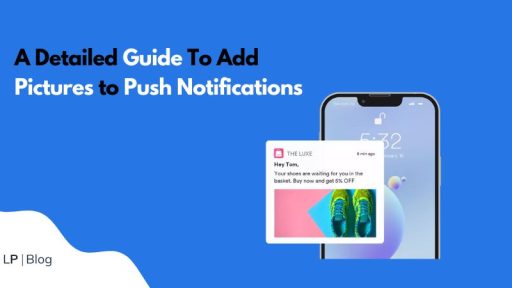
Keep the title short, because many systems truncate long text. Also, put the most important word first. The Chrome team’s article on displaying a notification shows how each field appears, and my guide to adding images to web push notifications covers image sizes.
Which templates should you create first?
Start with the three to five messages you send most often. For most sites, that list is short.
| Site type | Template | Example title pattern |
|---|---|---|
| Publisher or blog | New post | “New: {headline}” |
| Publisher or blog | Breaking news | “Breaking: {headline}” |
| Online store | Price drop | “Price drop on {product}” |
| Online store | Back in stock | “{product} is back in stock” |
| SaaS or app | Product update | “New in {product}: {feature}” |
| Any site | Event reminder | “{event} starts in 1 hour” |
Welcome messages and drip steps are templates too, but they usually live in automations rather than manual campaigns. See my guides to the welcome push notification and drip push campaigns for those.
How do you create a template in a push panel?
In most panels, you build the notification once in the campaign editor and save it as a template. The usual steps:
- Open the campaign editor and fill in title, message, icon, image, launch URL and buttons.
- Replace the parts that change with clear placeholders or notes, such as {product}.
- Check the live preview on desktop and mobile layouts.
- Save it as a template with a clear name, such as “Store: price drop”.
- For the next campaign, load the template, edit the variable parts and send a test.
- Update the template when a better version performs well.
Naming matters more than it sounds. Once you have 20 templates, a name like “Template 7” is useless, while “Blog: breaking news” is findable in seconds.
How do you build a template system in your own code?
If you send with your own code, a template is just a function or a stored JSON object that you merge with per-send data. The service worker then shows whatever payload arrives.
// templates.js
const templates = {
  priceDrop: ({ product, price, url, image }) => ({
    title: `Price drop: ${product}`,
    body: `Now ${price}. Tap to see the deal.`,
    icon: '/icon-192.png',
    image,
    url: `${url}?utm_source=push&utm_medium=web-push&utm_campaign=price-drop`
  })
};

// usage before sending
const payload = JSON.stringify(
  templates.priceDrop({ product: 'Trail Shoe', price: '$79', url: 'https://example.com/trail-shoe', image: 'https://example.com/push/trail-shoe.jpg' })
);
Keep templates in version control, so you know which wording went out when. The sending side is covered in my guides to web push from Node.js and web push from Python. Field names in the payload are your choice; the service worker maps them to showNotification() options.
What mistakes make templates backfire?
The biggest mistake is reusing the exact same words so often that subscribers stop reading. A template should fix the structure, not the message. Watch for these:
- Identical copy every time. Change the hook and the detail on each send.
- Placeholders left unfilled. A “{product}” in a live notification looks broken. Always send a test first.
- One template for every segment. Different audiences need different angles, so pair templates with segments.
- Stale templates. Review them every few months, and retire ones that no longer perform.
- Text inside images. It’s unreadable at notification size, and many browsers don’t show large images.
To judge which version works, test it. My guide to push notification A/B testing shows how to compare two versions fairly.
Where does LaraPush fit?
LaraPush includes reusable campaign templates on every plan, starting with Startup. According to its templates page, a template holds the title, message, icon URL, image URL and launch URL. You save it to a template library, then load it into a new campaign from a gallery. Split-button options, “Send & Create Template” and “Send & Update Template”, save or update a template while sending, and edits only affect future campaigns.
LaraPush is a self-hosted panel, so you run your own VPS, the licence covers one server, and there’s no free plan. Plans start from $499 one-time; check the pricing page for current prices. For other features, see the features overview, or compare tools in my roundup of push notification services.
Frequently asked questions
It’s a saved notification layout you reuse across campaigns. A template usually stores the title pattern, message, icon, large image, launch URL and buttons, so you only change the variable parts, such as the product name or headline, before each send.
Start with three to five, one for each message type you send most often, such as new post, breaking news, price drop or back in stock. Add more only when a new message type becomes regular, and retire templates that stop performing.
Often, yes. Many push tools support placeholders that fill in per send or per subscriber, such as a product name or price. If you send with your own code, merge the data into the template before encrypting the payload, then test that every placeholder is filled.
No. Templates suit repeated message types, but one-off announcements often deserve fresh wording. Use templates to keep structure, branding and tracking consistent, and write the hook and detail new each time so subscribers keep reading.
No. A sent notification is already on the subscriber’s device, so editing a template only affects future campaigns. In LaraPush, the templates page states that updates apply to future campaigns and previously sent notifications stay unchanged.