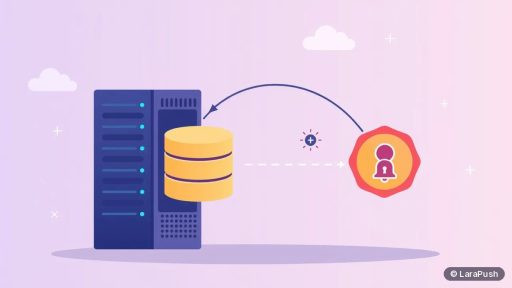
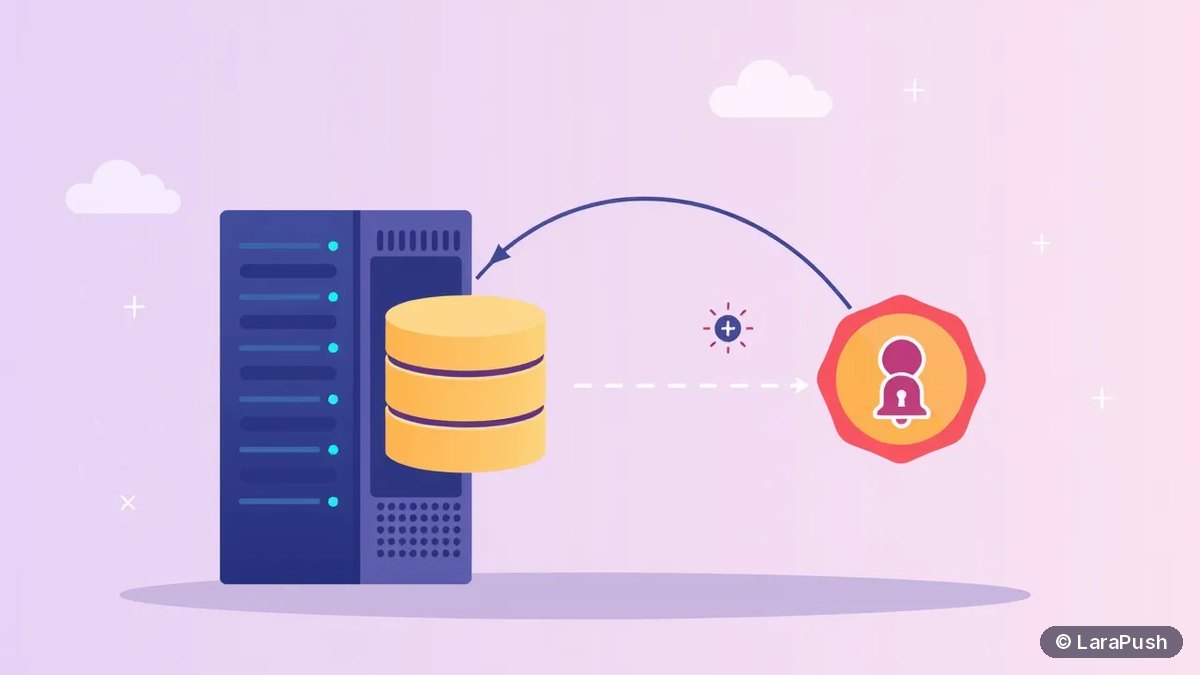

To move a self-hosted push panel to a new VPS, build the new server first, copy the database, the app files and the .env file with the same app key, VAPID keys and Firebase settings, then switch DNS to the new IP. Keep the same domain and keys, and existing subscribers keep working.
A move feels risky because your subscriber list is the whole asset. In practice, a self-hosted push notification server is just a web app, a database and a few background jobs. If you copy those three things carefully, subscribers don’t notice anything. Below is the order I’d follow, the checks I’d run, and the mistakes that actually lose subscribers.
Why would you move a self-hosted push panel to a new VPS?
Most people move for one of four reasons: the server is too small, the host is too expensive, the OS is reaching end of life, or they want a data centre closer to their audience. All four are normal maintenance, not emergencies.
| Reason | Typical trigger | What to check before moving |
|---|---|---|
| More capacity | Queues back up during big sends | CPU, RAM and disk on the new plan |
| Lower cost | Renewal price went up | Same or better specs at the new host |
| OS upgrade | Old Ubuntu release losing support | PHP and MySQL versions your panel needs |
| Location | Audience is mostly in one region | Latency matters less than uptime |
That said, don’t move just to chase a small saving. Every migration has a short window where something can go wrong, so plan it for a quiet traffic day.
What do you need to move a push panel without losing subscribers?
You need five things from the old server: the database, the application files, the environment file, the push keys, and the background job setup. Miss any one of them and the panel will either fail to start or fail to send.
| Item | Why it matters | Where it usually lives |
|---|---|---|
| Database dump | Holds subscribers, segments, campaigns and reports | MySQL or MariaDB |
| Application files | The panel code plus uploaded icons and images | Web root, for example /var/www |
| .env file | App key, database login, mail and queue settings | Project root |
| VAPID keys and Firebase config | Prove your server may send to existing subscriptions | .env or panel settings |
| Cron and queue workers | Send scheduled campaigns and process the queue | crontab and Supervisor or systemd |
Why the keys matter most
Push subscriptions are tied to the key pair your server used when the visitor subscribed. The browser stores your public VAPID key with the subscription, as described in the Push API spec on MDN, and the push service checks your signature against it (RFC 8292). So if you generate new keys on the new VPS, old subscriptions stop accepting your messages. I explain this in more detail in what VAPID keys are and why they matter.
The Laravel app key is the second trap. Laravel uses APP_KEY to encrypt data, and the Laravel docs warn that values encrypted with an old key can’t be decrypted with a new one. Copy the .env file as it is; don’t run key:generate on the new server.
How do you move the panel step by step?
The safest order is: prepare, copy, test, then switch DNS. The old server stays live until the very end, so you always have a way back.
1. Prepare both servers
- Take a full backup or snapshot of the old VPS.
- Lower the DNS TTL on the panel’s A record to 300 seconds a day before the move.
- Create the new VPS with the same OS family and the same PHP and MySQL versions.
- Install the web server, PHP extensions, Composer and the database server.
- Note the old crontab and Supervisor files so you can copy them later.
2. Copy the data
- Pause scheduled campaigns and automations on the old panel.
- Stop the queue workers so nothing is half-sent during the copy.
- Export the database with mysqldump using the –single-transaction option.
- Copy the application folder, including the storage folder and the .env file, with rsync or scp.
- Import the dump into an empty database on the new server.
- Fix file ownership and permissions for the web server user.
3. Test before switching
- Edit your local hosts file so the panel domain points to the new IP for your computer only.
- Log in, open a few campaigns and check that the subscriber count matches the old panel.
- Send a test notification to your own subscribed browser.
- Check the queue worker and the scheduler are running.
4. Switch and watch
- Issue an SSL certificate on the new server, for example with Let’s Encrypt and Certbot.
- Point the A record to the new IP.
- Watch the logs and send one more test once DNS has updated.
- Keep the old VPS for a week before you delete it.
Does moving the panel change anything for the website?
No, if the panel domain stays the same. The service worker and subscription live on your website’s origin, not on the panel server, so visitors keep their subscriptions. I covered why in why web push subscriptions are tied to your domain.
However, the script tag on your site usually loads from the panel domain. If you change that domain during the move, every site that embeds the script needs updating. So in short: change the server, not the address. If you also use a CDN or proxy, re-check the setup described in running a push panel behind Cloudflare.
What usually goes wrong during a push panel migration?
Most failures come from missing background jobs, not from missing data. The panel loads fine, but nothing sends.
| Symptom | Likely cause | Fix |
|---|---|---|
| Panel loads, campaigns never send | Queue worker not running | Restart Supervisor or the systemd service |
| Scheduled pushes don’t fire | Cron for the scheduler missing | Add the scheduler line to crontab |
| Error about decryption or invalid payload | New APP_KEY generated | Restore the original .env |
| Old subscribers don’t receive, new ones do | VAPID keys or Firebase config changed | Restore the original keys |
| Browser shows a certificate warning | SSL not issued yet | Issue the certificate before switching DNS |
For example, the “new subscribers work, old ones don’t” pattern almost always means the keys changed. Fix it fast, because each failed send can make the panel mark valid subscribers as expired.
How long does the move take and how much downtime is there?
For a small panel, the copy and test take one to three hours, and sending is paused only while you export and import the database. Visitors can still browse your site the whole time; they just won’t get new notifications until the queue restarts.
Database size drives most of the time. A few hundred thousand subscriber rows export in minutes, whereas a database with years of click reports takes longer. So check the dump size first and plan the pause around it. My guide to the best VPS for self-hosted push notifications covers how to size the new server.
Where LaraPush fits
LaraPush is a self-hosted web push panel built with Laravel, PHP and MySQL, and it delivers through Firebase Cloud Messaging (FCM). Its llms.txt says an Ubuntu 24.04 VPS with 1 GB RAM and 1 vCPU is enough to start. Installation is free and done from the customer portal, and the licence covers one server.
Because of that one-server licence, contact LaraPush support before you move, so they can tell you how to handle the licence and help with the reinstall on the new VPS. Pro buyers with the Premium Add-on also get automated Google Drive backups, which give you a fresh copy to restore from. See the LaraPush features and pricing pages for what each plan includes, and my backup guide for self-hosted push panels before you start. For a wider view of the market, see my list of push notification services and tools.
Frequently asked questions
No, as long as you keep the same panel domain, the same VAPID keys and the same Firebase project settings. The subscription lives in the visitor’s browser and on your site’s origin, so a new server IP doesn’t affect it. Generating new keys is what forces people to resubscribe.
You can, but it adds work. Every website that loads the panel script from the old domain must be updated, and some setups may need subscribers to resubscribe. It’s safer to move the server first and change the domain later as a separate, tested project.
Only one server should send at a time. If both run queue workers and schedulers, scheduled campaigns can go out twice. Stop the workers and cron on the old server before you start them on the new one, and keep the old server only as a fallback.
Yes. In Laravel apps the storage folder often holds uploaded notification icons, images, logs and cached files. If you skip it, older campaigns may show broken images, and you lose the logs that help you debug the move.
Compare the subscriber count in both panels, then send a test notification to a browser that subscribed before the move. If that old subscription receives the test, your keys, database and queue are all working on the new VPS.