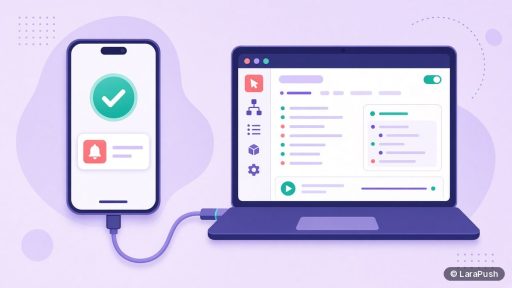
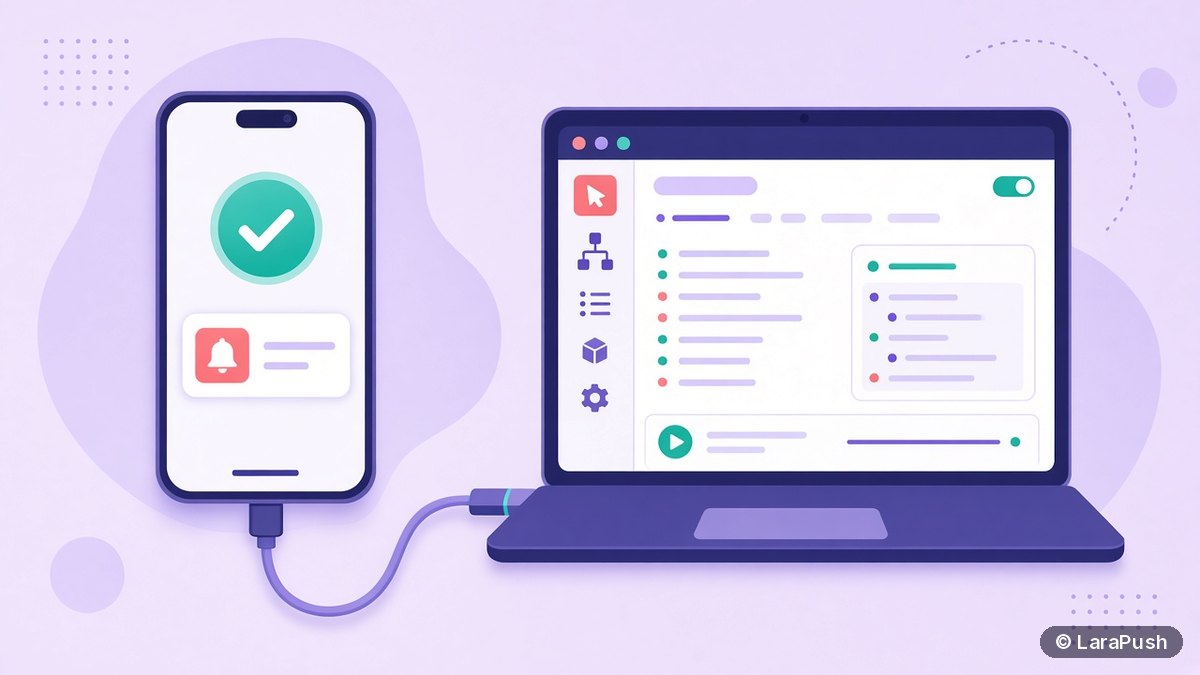

To test web push notifications on an iPhone, use a real device on iOS 16.4 or later. Add the site to the Home Screen, open it from the icon, subscribe, then send a test with the phone locked. If nothing arrives, connect the iPhone to a Mac and inspect the web app with Safari’s Web Inspector.
Testing web push on iPhone is different from testing on Chrome, because the subscription only exists inside the installed Home Screen web app. So, a quick look in Safari proves very little. Here’s the test plan I use, the tools that help, and what each failure usually means.
What do you need before you test web push on iPhone?
You need a real iPhone on iOS 16.4 or later, a site on HTTPS with a web app manifest and a service worker, and a push panel or script that can send to one subscriber. The iOS Simulator on a Mac isn’t a reliable stand-in for the full flow, so plan on a physical device.
| Item | What to check | Quick test |
|---|---|---|
| iOS version | 16.4 or later | Settings > General > About |
| HTTPS | Valid certificate, no mixed content | Padlock in Safari |
| Manifest | display set to standalone | Icon opens without the address bar |
| Service worker | Registered on your domain | Visible in Web Inspector |
| Sender | Can target one subscriber | A test send option in your panel |
WebKit’s iOS 16.4 web push announcement sets out these requirements. If you haven’t set up the site yet, start with my guide on how to get web push working on iPhone.
How do you run the test, step by step?
Run the test in this order, because each step depends on the last one.
- Remove any old Home Screen icon for the site, so you start clean.
- Open the site in Safari and tap Share, then “Add to Home Screen”.
- Launch the site from the new icon and confirm there’s no address bar.
- Tap your subscribe button and choose Allow.
- Check your push panel for a new subscriber with an iOS or Safari device type.
- Send a test notification to that subscriber only.
- Lock the phone and wait for it to arrive.
- Tap the notification and confirm it opens the right URL.
I also repeat step 6 with the web app open in the foreground and again after closing it from the App Switcher. Those three states (locked, open, closed) catch most service worker bugs.
How do you debug a Home Screen web app?
Debug it with Safari’s Web Inspector on a Mac. Turn on Web Inspector on the iPhone in Settings > Apps > Safari > Advanced (older iOS versions: Settings > Safari > Advanced), connect the phone by cable, and open the Develop menu in Safari on the Mac. Apple’s guide to inspecting iOS and iPadOS has the full steps.
From there, you can see console errors, network requests and the service worker. These are the things I look for:
- A manifest that fails to load or has the wrong display value.
- A service worker that failed to register or is stuck on an old version.
- A JavaScript error in the push event handler.
- A subscribe call that runs on page load instead of on a tap.
For general service worker debugging, my post on the service worker for web push covers scope and caching pitfalls.
What should a good test notification include?
A good test notification uses the same fields as a real campaign: title, body, icon, click URL and, if you use them, an image and buttons. Testing a bare “Hello” message hides problems that show up later.
Keep the click URL on your own domain with a tracking parameter, so you can see the click in analytics. Then check how the notification looks on the Lock Screen and in Notification Center. On iPhone, the layout differs from Android and desktop, so long titles get cut earlier. MDN’s showNotification() reference lists the options and notes that support varies by browser.
Why does the test work on Android but not on iPhone?
Usually because the iPhone subscription never happened, or the service worker fails only in WebKit. Android Chrome lets visitors subscribe from a normal tab, so it hides setup gaps that iPhone exposes.
| Symptom | Likely cause | What to try |
|---|---|---|
| No Allow prompt appears | Permission requested without a tap, or site not opened from the Home Screen | Trigger the request from a button inside the installed app |
| Prompt appears, but no subscriber in the panel | Subscription not saved on the server | Check the network request in Web Inspector |
| Subscriber exists, nothing arrives | Send error, or outbound traffic to *.push.apple.com blocked | Check send logs and your server firewall |
| Arrives late or not on the Lock Screen | Focus mode or notification settings | Check Settings > Notifications for your web app |
| Opens the wrong page | Click handler or URL issue | Check the notificationclick handler |
If your testing shows real users aren’t getting messages, my troubleshooting guide on why iPhone users don’t receive web push goes deeper. For desktop and Android issues, see web push notifications not showing.
How often should you retest on iPhone?
Retest after any change to the manifest, service worker, push provider or domain, and after major iOS updates. Those are the moments when working setups break.
I keep one test iPhone subscribed as a permanent “canary”. It gets every campaign through a small test segment first. If that canary goes quiet, I know something changed before subscribers notice.
Where does LaraPush fit?
LaraPush is a self-hosted web push panel with a live preview and test send for campaigns, and it supports iPhone and iPad through iOS Safari web push (iOS 16.4+, site added to the Home Screen). You can segment by device, browser and OS, which makes it easy to target a test send to iOS subscribers only. See the iOS push page and the features overview.
The trade-offs: you run your own VPS, the licence covers one server, and there’s no free plan. Plans start from $499 one-time; check the pricing page for current prices. For other options, see my guide to push notification services.
Frequently asked questions
Not reliably. The full flow depends on adding the site to the Home Screen, the iOS permission prompt and Apple’s push service delivering to the device. A real iPhone on iOS 16.4 or later is the only test that reflects what subscribers see.
Either the site wasn’t opened from its Home Screen icon, or the permission request didn’t come from a tap. iOS only shows the prompt inside an installed web app, in response to a direct user action such as tapping a subscribe button.
Turn on Web Inspector in the iPhone’s Safari Advanced settings, connect the phone to a Mac, and open Safari’s Develop menu on the Mac. Select the web app to see its console, network requests and service worker.
Both, and once with the web app closed from the App Switcher. Locked tests confirm Lock Screen delivery, open tests check foreground behaviour, and closed tests confirm the service worker wakes up correctly when a push arrives.
Use your panel’s test send to one subscriber, or create a segment filtered to your device, OS and browser. Avoid testing on your full list, because every test notification counts against subscribers’ patience.