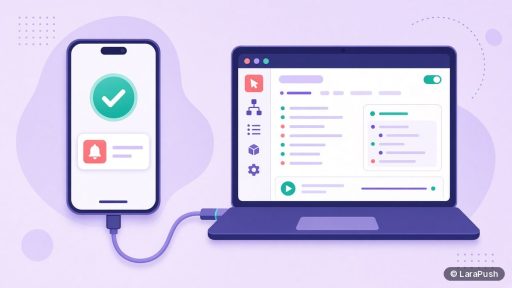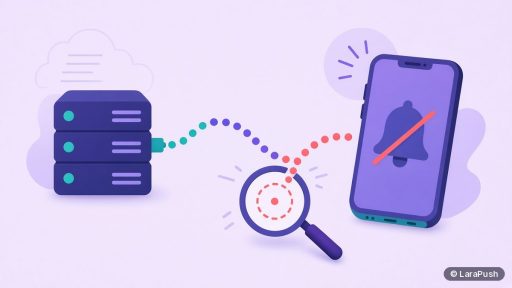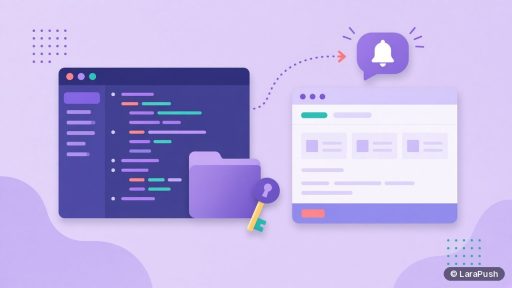

To get web push notifications working on iPhone, your site needs HTTPS, a web app manifest with display set to standalone, and a service worker. The visitor must be on iOS or iPadOS 16.4 or later, add the site to the Home Screen, open it from that icon, and tap a button that asks for permission. Safari tabs alone can’t subscribe.
That is the short version of a web push notifications iPhone setup. The details matter, though, because one missing piece makes iPhone users silently fall out of your subscriber list. Below I walk through what the site needs, what the visitor does, and the checks I run before calling a setup done.
What does an iPhone web push setup need?
An iPhone web push setup needs four things on the site and one action from the visitor. Apple added web push for Home Screen web apps in iOS and iPadOS 16.4, as announced on the WebKit blog.
| Requirement | Where it lives | Why it matters |
|---|---|---|
| HTTPS | Your whole site | The Push API and service workers only run in secure contexts |
| Web app manifest | /manifest.json linked in the page head | Makes the site a Home Screen web app |
| display: standalone (or fullscreen) | Inside the manifest | Without it, the icon just opens a Safari tab |
| Service worker | A JS file on your own domain | Receives the push event and shows the notification |
| Home Screen install | The visitor’s iPhone | iOS only offers push to installed web apps |
The good news: this is the same W3C standard web push that Chrome, Firefox and Edge use. If your code uses feature detection, WebKit says it will work on iPhone and iPad without a separate Apple integration.
How do you set up the site, step by step?
Set up the site in six steps. Most push platforms handle steps 3 to 6 for you, so check what yours already provides before writing code.
- Serve every page over HTTPS with a valid certificate.
- Create a manifest with a name, icons (at least 192px and 512px), start_url and display set to standalone.
- Link it in the head of every page with a link rel=”manifest” tag.
- Host the service worker on your own domain, at a stable URL, and register it on page load.
- Add a visible “Turn on notifications” button that calls the permission request only when tapped.
- Save the subscription on your push server, then send yourself a test.
The manifest fields are documented on MDN’s web app manifest reference. For the service worker side, my guide to the service worker for web push explains why it must stay on your domain.
What does the visitor have to do on the iPhone?
The visitor has to install your site and then opt in from inside the installed app. Push permission can’t be requested from a normal Safari tab on iPhone.
- Open your site in Safari.
- Tap the Share button, then “Add to Home Screen”.
- Open the site from the new Home Screen icon.
- Tap your subscribe button and choose Allow in the iOS prompt.
So, you need to tell people this. A small banner shown only to iPhone visitors in Safari, with those steps, works far better than hoping they find the Share menu. Once they allow it, iOS lists your web app in Settings > Notifications like any other app, as Apple’s notification settings guide shows.
Why must the permission request come from a tap?
iOS only shows the permission prompt in response to a direct user action, such as tapping a button. WebKit states this rule in its iOS 16.4 announcement.
In practice, that means a prompt fired on page load, on scroll, or after a timer won’t appear on iPhone. It’s a good rule anyway. A button with a clear reason (“Get a notification when we publish a new guide”) tends to earn better opt-ins than a cold prompt. My notes on push permission prompt best practices cover wording and timing.
Do you need an Apple Developer account or certificates?
No. Web push on iOS uses the Apple Push Notification service (APNs), but you don’t need to join the Apple Developer Program. Your server uses standard VAPID keys, just like for Chrome or Firefox.
WebKit’s only extra advice is to allow URLs from *.push.apple.com if you control your server’s outbound rules. If your push server sits behind a strict egress firewall, add that pattern. Otherwise, sends to iPhone subscribers will fail while Android and desktop sends work fine. My post on VAPID keys for web push explains how those keys work.
How do you check that the setup works?
Check it on a real iPhone, not only in a desktop simulator. I run through this list:
- The manifest loads without errors and display is standalone.
- The Home Screen icon opens without the Safari address bar.
- The subscribe button triggers the iOS Allow prompt.
- A test notification arrives with the phone locked.
- Tapping the notification opens the right page.
If any step fails, I go through it in order, because each step depends on the one before it. For the full testing flow, including remote debugging from a Mac, see how to test web push notifications on iPhone.
What are the limits on iPhone?
The main limit is reach: only visitors who add your site to the Home Screen can subscribe. That’s a real extra step, so expect fewer iPhone subscribers than Android ones from the same traffic.
Other limits are worth knowing too:
- Each install is separate. If someone deletes the Home Screen icon, that subscription is gone.
- Users control everything in Settings > Notifications, including Focus modes, which can hold your notifications back.
- Silent pushes aren’t allowed. Every push must show a visible notification.
For a wider view of what works on which device, see which browsers support web push and my explainer on iPhone push notifications without an app.
Where does LaraPush fit?
LaraPush is a self-hosted web push panel that supports iPhone and iPad through iOS Safari web push on iOS 16.4 and later, for sites added to the Home Screen. You install it on your own VPS, and it handles subscriptions, campaigns and reporting across Chrome, Firefox, Edge and other browsers too. The iOS push feature page and the setup guide cover the configuration.
The trade-offs are honest ones: you run the VPS, the licence covers one server, and there’s no free plan. Plans start from $499 one-time; check the pricing page for the current price. If you’re still comparing tools, my roundup of push notification services is a good starting point.
Frequently asked questions
iOS and iPadOS 16.4 and later support web push for websites added to the Home Screen. Older versions can’t receive web push at all. Ask users on older versions to update their iPhone in Settings > General > Software Update.
No. On iPhone, the site must be added to the Home Screen and opened from that icon first. Only then can a tap on your subscribe button show the iOS permission prompt. A normal Safari tab can’t subscribe.
Yes. The manifest, with display set to standalone or fullscreen, turns your site into a Home Screen web app. Without it, the Home Screen icon only opens a Safari tab, and iOS won’t offer push permission.
No. WebKit confirms that web push on iOS doesn’t require Apple Developer Program membership. Your push server uses standard VAPID keys, and Apple’s push service delivers the message to the iPhone.
It will if your provider supports standards-based web push with iOS 16.4+ and a manifest. Check its docs for iOS support, a manifest setting, and a Home Screen install banner. Then confirm with a real iPhone test.