
When a visitor blocks notification permission, your site can’t ask again or override the choice; only the visitor can undo a blocked notification permission in the browser’s site settings. The honest fix is to show a short, dismissible message with re-enable steps to people who show fresh interest, then subscribe them silently once they allow notifications again.
I get this question a lot from site owners who see a falling opt-in rate. The block itself is final from the site’s side, so the work splits into two parts. First, help the small group of visitors who changed their mind. Second, stop creating new blocks with better timing.
What happens when a visitor blocks notification permission?
A block sets the site’s notification permission to “denied” for that browser. From then on, the browser won’t show the permission prompt for your site, and Notification.requestPermission resolves to “denied” straight away, as MDN documents.
So a blocked visitor looks the same to your script every time they come back. That’s by design. Browsers protect people from sites that ask again and again, and no push tool can change it.
- Scope: the block applies to one site in one browser profile on one device.
- Duration: it lasts until the visitor changes it, resets site data for the site, or reinstalls the browser.
- Other devices: a block on a laptop doesn’t affect the same person’s phone, which keeps its own permission state.
- Existing subscription: if the visitor had subscribed earlier and later blocks, your next send to that subscription fails, and the push service tells your server it’s gone.
How can you tell a visitor has blocked notifications?
Check Notification.permission in your script before you show any prompt. It returns “default”, “granted” or “denied”, and only “default” means the browser can still ask.
| Value | What it means | What your site should do |
|---|---|---|
| default | No decision yet | Show your soft prompt at a good moment |
| granted | Notifications allowed | Subscribe silently; don’t prompt |
| denied | Visitor blocked notifications | Never call the prompt; offer re-enable help only on request |
You can also use the Permissions API with navigator.permissions.query({name: “notifications”}). It lets your page listen for a change event. That way, if the visitor unblocks notifications in another tab, your page can react without a reload in browsers that support it.
How do visitors fix a blocked notification permission in each browser?
Visitors unblock notifications from the site settings icon next to the address bar, or from the browser’s settings page. The exact path differs by browser, so keep your help text short and specific to the browser the visitor is using.
| Browser | Where to unblock |
|---|---|
| Chrome and Edge (desktop) | Site settings icon left of the address bar, then Notifications, then Allow |
| Chrome on Android | Three-dot menu, then Settings, then Site settings, then Notifications |
| Firefox | Permissions icon in the address bar, or Settings, then Privacy and Security, then Notifications |
| Safari on macOS | Safari Settings, then Websites, then Notifications |
| Safari web app on iPhone (iOS 16.4+) | iPhone Settings, then Notifications, then the Home Screen web app |
These paths come from the Chrome Help page on notifications and Mozilla’s Firefox notifications guide. Menus move between versions, so I re-check them before I publish help text on a site.
Should you show a “how to re-enable notifications” message?
Yes, but only to visitors who show new interest. For example, show it when a blocked visitor clicks your bell icon or a “Get alerts” button. In that case they’ve asked for alerts, so a short explanation is helpful rather than nagging.
A good re-enable message has four parts:
- Say plainly that notifications are blocked in this browser.
- Show the two or three clicks for their browser, ideally with a small screenshot.
- Offer another channel, such as an email newsletter or an RSS feed.
- Close easily and stay closed for a long time.
That said, don’t show a full-screen overlay on every page view to visitors who blocked you. They already gave a clear answer. Pushing harder mainly hurts their experience and makes the site feel spammy.
What happens after the visitor unblocks?
After the visitor allows notifications, Notification.permission becomes “granted”. Your push script can then create a new push subscription without showing another prompt. Make sure your script checks the permission on each page load and subscribes when it finds “granted” with no active subscription.
Why do so many visitors block notifications in the first place?
Most blocks come from asking too early. If the prompt appears on page load, before the visitor knows what your site sends, many people click Block by reflex.
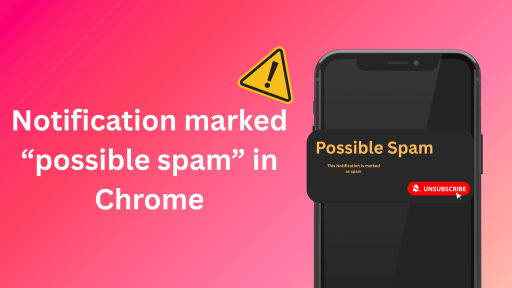
Chrome also reacts to low acceptance. It may switch your site to its quieter permission prompt, which shows a small crossed-out bell instead of a pop-up. In addition, Chrome announced in October 2025 that it will automatically remove notification permission for sites that send a high volume of notifications with very low engagement. So both asking and sending carelessly can cost you subscribers.
The better pattern is a two-step opt-in. First show your own soft prompt that explains what you send and how often. Then call the browser prompt only after the visitor clicks Allow on it. A visitor who declines your soft prompt hasn’t blocked anything, so you can ask again later. I cover timing in push permission prompt best practices, and web push opt-in rate explains what to measure.
Can you reduce blocks without tricking visitors?
Yes. Fewer blocks come from clearer value and better timing, not dark patterns. Here are the changes I’d make first:
- Ask after real interest, such as a second page view, scrolling an article, or clicking a “notify me” button.
- Say what you’ll send and how often, for example “breaking news only, about two a day”.
- Delay the next soft prompt after a visitor dismisses it, so you don’t ask on every page.
- Keep the content of your notifications relevant, so subscribers don’t revoke permission later.
- Watch why people leave; why push subscribers unsubscribe lists the common reasons.
Avoid fake “Click Allow to continue” overlays and prompts disguised as captchas. Google says Chrome revokes notification permissions from sites that Safe Browsing finds deceiving users into granting them.
Where LaraPush fits
LaraPush is a self-hosted web push panel that you install on your own VPS. Its prompt options include native, modal, full screen, restrictive and bell prompts, with delay and re-prompt control. That means you can run a two-step opt-in and keep the browser prompt for visitors who already said yes.
The trade-offs are real: you run the server, a licence covers one server, and there’s no free plan. Pricing starts from a one-time fee, so check the LaraPush pricing page for the current price. The features overview lists every prompt type. If you’re still comparing tools, my list of push notification services and tools covers other options.
Frequently asked questions
No. Once a visitor blocks notifications, the browser won’t show the permission prompt for that site again, and requestPermission returns denied immediately. Only the visitor can change the setting, either from the site settings icon next to the address bar or from the browser’s settings page.
Not always. Clearing only cookies often leaves site permissions in place. Clearing all site data or resetting the site’s permissions in the browser does reset it. That’s why your own soft prompt timers may reset while the browser’s block stays.
No. Blocking notifications stops the browser from showing your site’s notifications, and major browsers then drop the push subscription. Your next send to that subscription fails, and the push service returns an error, so your push panel should remove the record.
No. Notification permission is stored per site, per browser, on each device. A visitor who blocks you on a laptop can still allow notifications on their phone, and each device creates its own separate push subscription.
You can’t remove Block from the browser’s own prompt. Some push tools let you hide the deny button on their soft prompt, but visitors can still close it. Clear value and good timing reduce blocks more reliably than removing choices.